

NoxLens
Dark Mode for Every Website
Guide updated: July 29, 2026
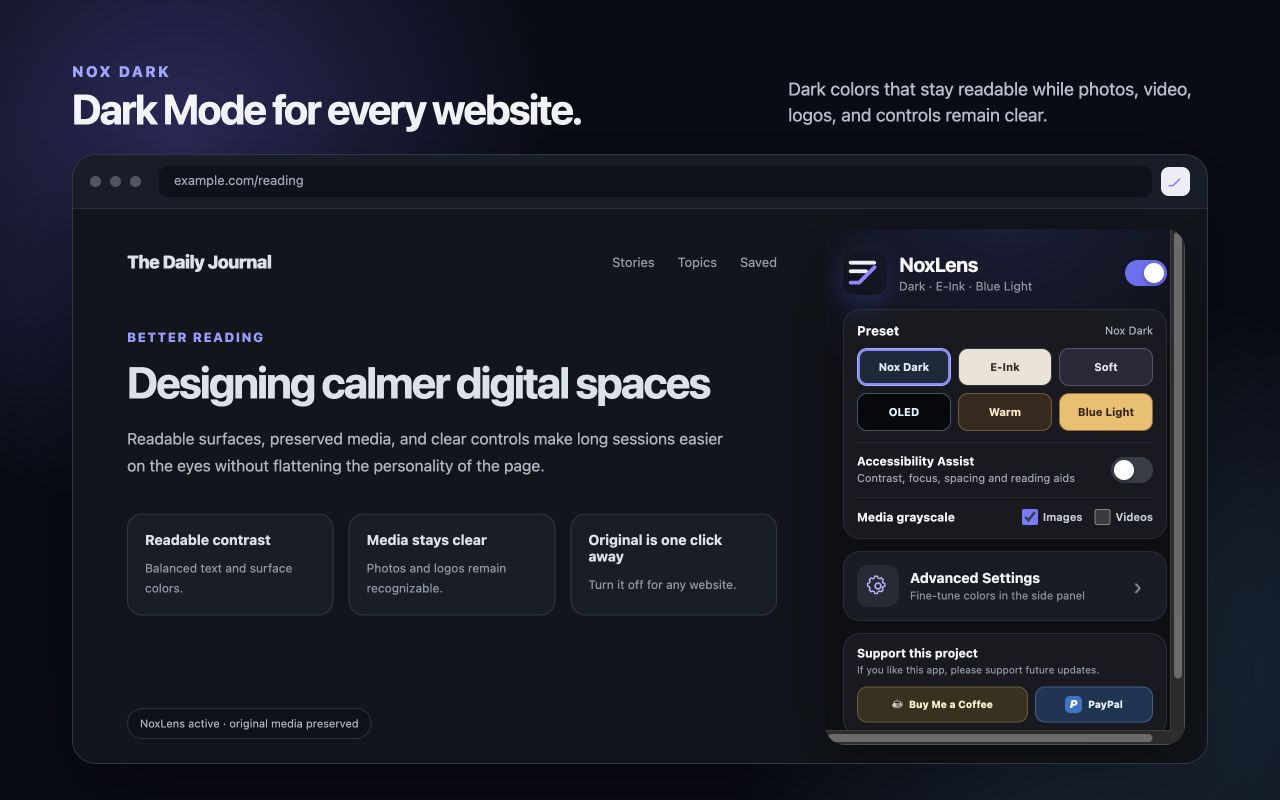
NoxLens changes webpage appearance locally in Chrome. Use this guide to choose a view, adjust media and accessibility aids, save a custom preset, and return to the original page.
1. Install and pin NoxLens
- Install NoxLens from its Chrome Web Store listing.
- Select the Extensions icon in Chrome’s toolbar.
- Pin NoxLens so its N icon remains visible.
- Open an ordinary webpage. Chrome-protected pages cannot be changed by extensions.
2. Quick Start
3. Choose the right viewing mode
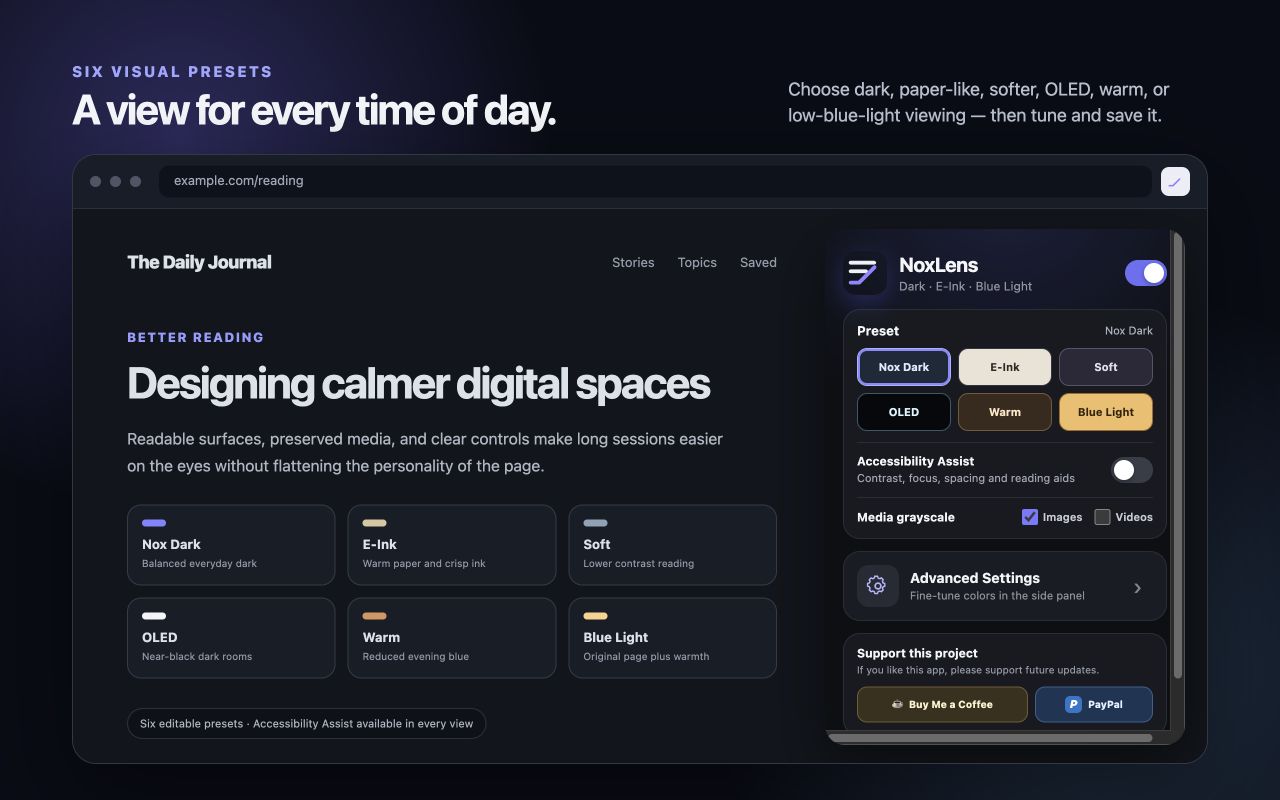
| Preset | Best suited to |
|---|---|
| Nox Dark | Everyday dark browsing with readable neutral surfaces. |
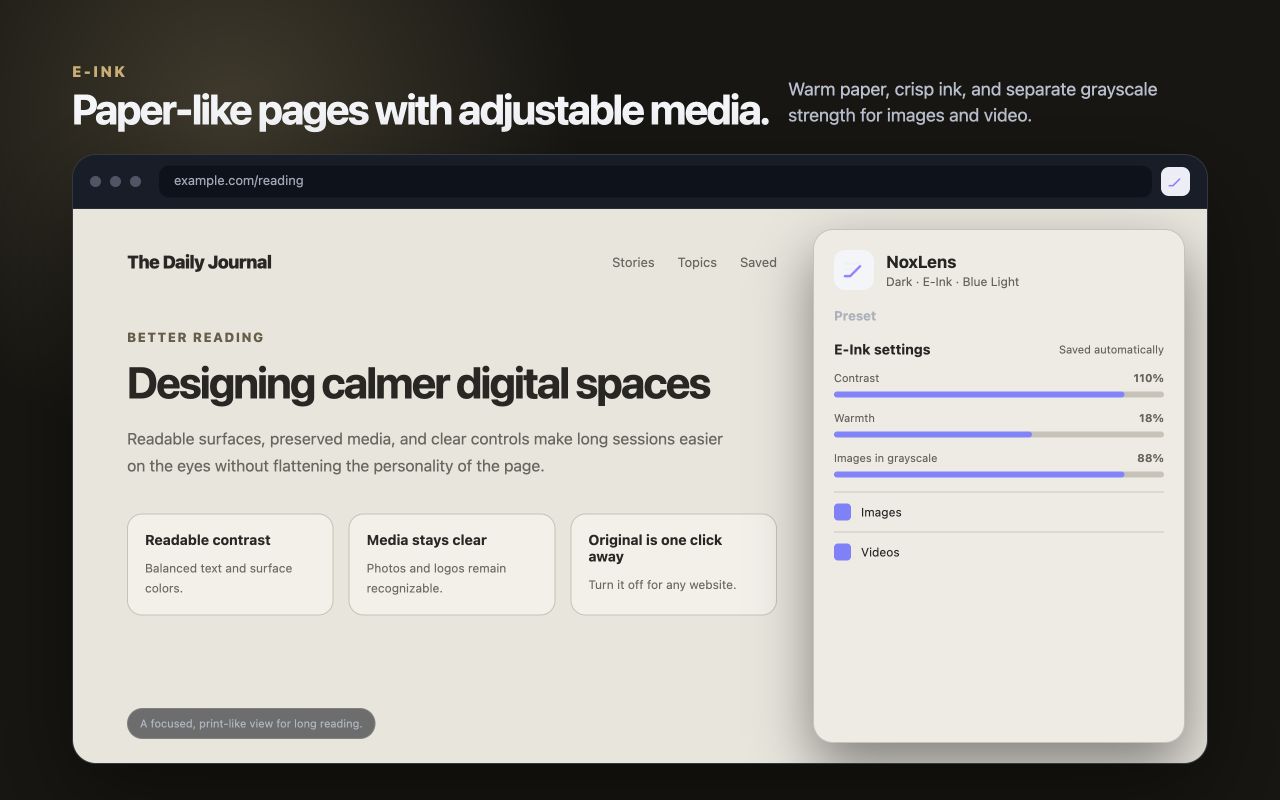
| E-Ink | Paper-like reading with a light warm surface and dark ink. |
| Soft | Lower-contrast reading when bright text on deep black feels harsh. |
| OLED | Near-black backgrounds in dark rooms or on OLED displays. |
| Warm | A darker amber appearance for evening browsing. |
| Blue Light | The website’s original colors with an adjustable warm overlay. |
Dark mode is not comfortable for everyone. If light text appears blurry or produces a halo, try Soft, E-Ink, or Blue Light, or turn NoxLens off.
4. Visual guide
5. Media grayscale
The popup provides simple Images and Videos checkboxes. Enable a checkbox when you want that media type to become monochrome. Leave it off when original media color is important.
- Image and video choices are saved.
- Each preset keeps separate grayscale strength values.
- CSS background artwork, canvas graphics, and embedded frames receive conservative handling to avoid breaking controls.
- NoxLens avoids destructive blanket inversion of photos and video.
6. Accessibility Assist
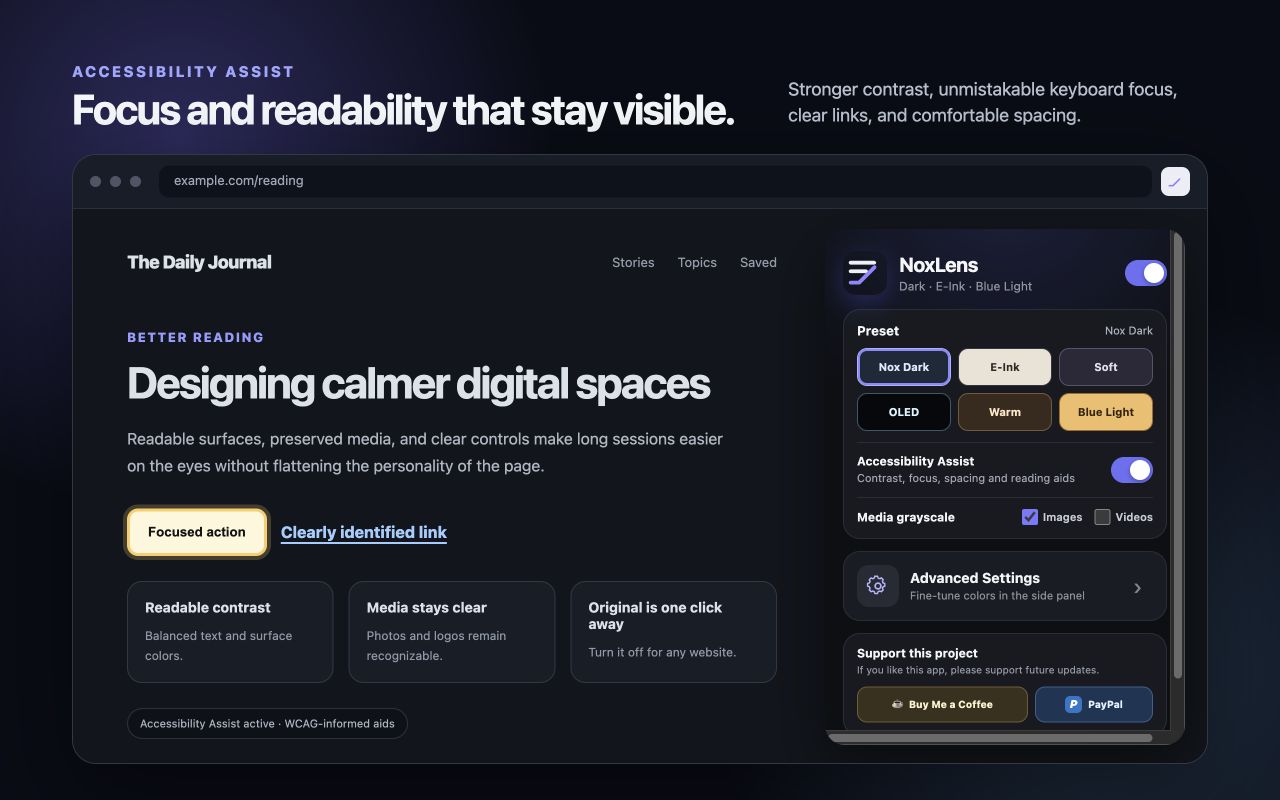
Turn Accessibility Assist on from the popup or Advanced Settings. The preference stays saved until you change it.
- Higher WCAG-informed contrast for text and controls
- Visible focus outlines for keyboard navigation
- Underlined links and clearer selection colors
- Readable spacing and larger interactive targets
- Reduced motion and a skip link where supported
Accessibility Assist is a visual aid. It does not certify that a website complies with WCAG, and it does not replace the website owner’s accessibility responsibilities.
7. Advanced Settings
Select Advanced Settings in the popup to open Chrome’s side panel.
- Select the preset you want to edit.
- Adjust text, background, surface, link, border, accent, selection, brightness, contrast, warmth, or grayscale controls.
- Changes save automatically to that preset.
- Select Reset preset to restore only the active preset’s original values.
The side panel also contains media strength controls and an automatic schedule. Overnight ranges such as 19:00–07:00 are supported and use your device’s local time.
8. Turn NoxLens off or restore the original page
Open the popup and turn off the top switch. NoxLens saves that global choice and restores original page colors across supported websites. Turn it on again whenever you want to resume the selected preset.
9. What NoxLens saves
NoxLens saves only the settings needed to reproduce your chosen appearance using chrome.storage.sync: the global switch, selected preset, custom adjustments, media choices, schedule, and Accessibility Assist preference. It does not build a list of websites you visit.
10. Troubleshooting
The page did not change
Confirm the global switch is on. Refresh pages that were already open when NoxLens was installed or updated. Chrome does not permit extensions to modify chrome:// pages or the Chrome Web Store.
A dynamic page changed back while scrolling
Refresh the page once and confirm the latest extension version is loaded. NoxLens watches newly added content, but a site that replaces its document root may require a reload.
An image or logo is hard to see
Disable Images under Media grayscale first. If needed, try Nox Dark or Soft, then refresh the page. NoxLens preserves media where possible, but transparent black artwork can depend on the website’s original light background.
Google Sheets or another web app feels slow
Reload after an extension update and avoid extreme custom contrast or grayscale settings. NoxLens uses a lighter treatment for canvas-heavy applications, but very large live documents may still require more browser resources.
Dark text has a halo or feels blurry
Dark Mode is not ideal for everyone. Try Soft, E-Ink, or Blue Light, reduce contrast in Advanced Settings, or turn NoxLens off.
Settings did not appear to save
Wait for the “Settings save automatically” status, then reopen the popup. If Chrome Sync is disabled, settings still remain in the current Chrome profile.
11. Privacy and support
NoxLens processes webpage styles locally and has no analytics, advertising, remote code, account requirement, or developer-operated server. Read the full Privacy Policy.